Creating Your Director Account
Before you can create tournaments on Taikai App, you need a director account. This guide walks you through the sign-up process, explains what happens after you confirm your email, and shows you where to go next.
Beta access: During the beta period, accounts are free to create. You only need credits when competitors register for your tournament — one credit per registration.
Create your account
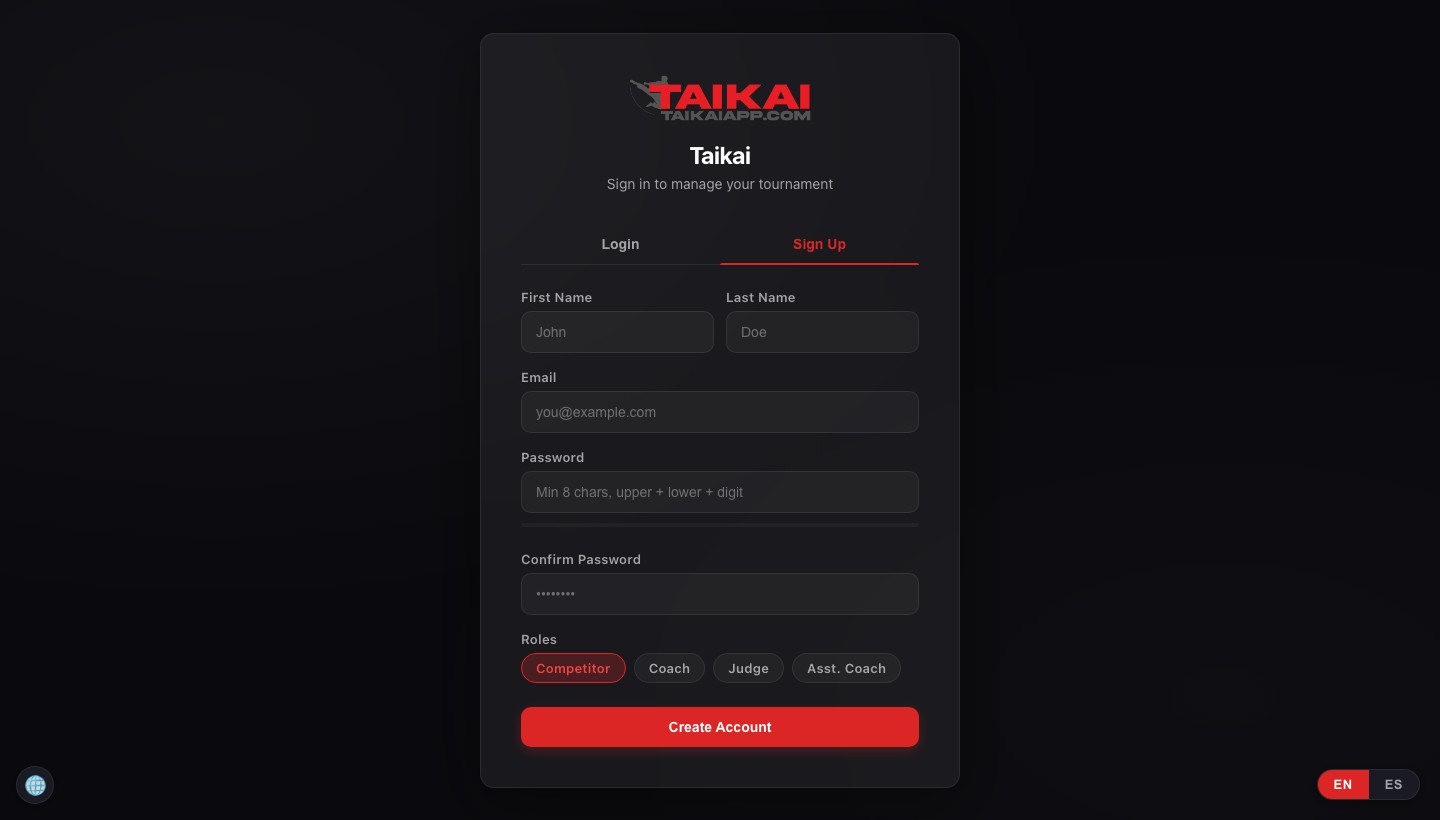
Navigate to taikaiapp.com/director and click the Sign Up tab. You'll see a form with the following fields:
-
1First name and last name These appear on certificates and in the tournament manager. Use your real name — competitors and staff will see it.
-
2Email address This becomes your login. It's also the contact email shown on your tournament's public page unless you change it later.
-
3Password Minimum 8 characters. Choose something strong — your account controls all competitor data for every tournament you run.
-
4Account type Select Tournament Director to unlock the tournament creation tools. You can also register as a Competitor, Coach, or Judge if you plan to participate in others' events.
Click Create Account. You'll receive a confirmation email within a few seconds. Click the link in that email to verify your address and activate full access.
Tip: Check your spam folder if the confirmation email doesn't arrive within 2 minutes. Add noreply@taikaiapp.com to your contacts to prevent future emails from being filtered.
Signing in
Once your email is confirmed, return to taikaiapp.com/director and use the Login tab. Enter your email and password, then click Sign In.
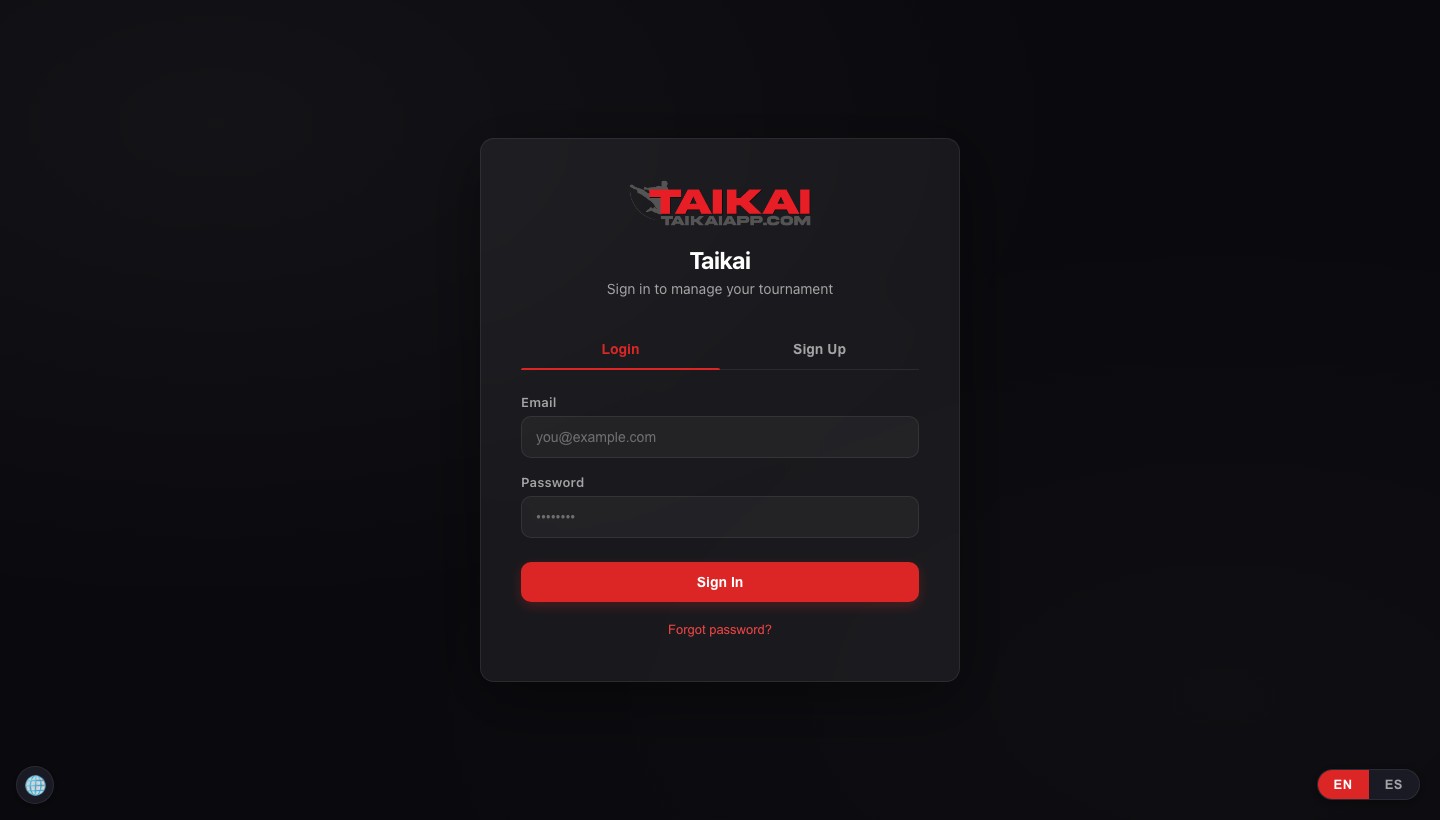
You'll be taken directly to your director dashboard — the central hub for all your tournaments.
Your dashboard
The My Tournaments section lists every tournament you've created. From here you can open the tournament manager, view the public registration page, or clone an existing event for next year.
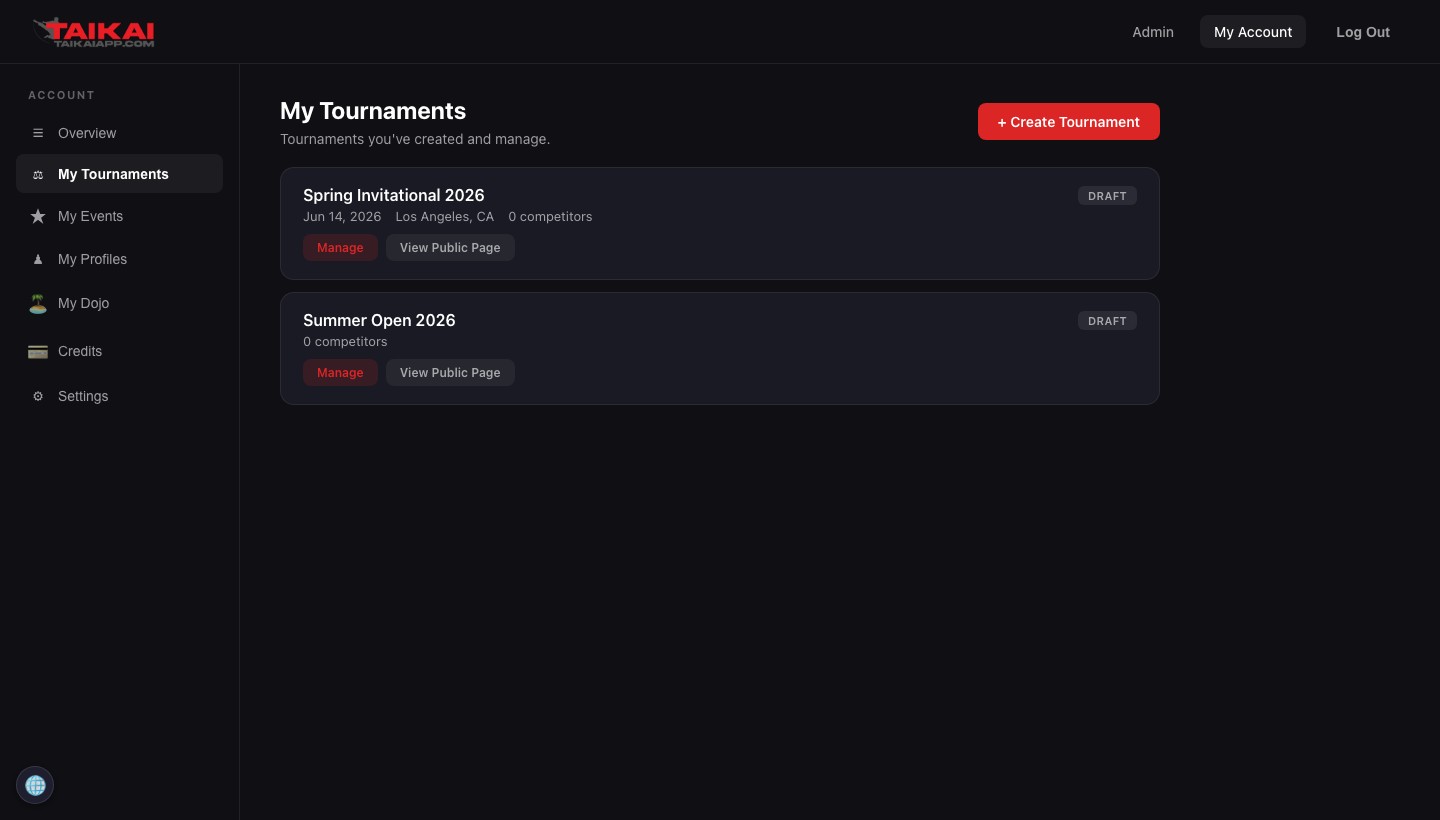
New accounts start with zero credits. You'll see a prompt to buy credits before competitors can register for your events. The sidebar also gives you access to My Profiles (for your own competition history), My Dojo (to manage your academy), and Settings.
Buy credits before your first tournament
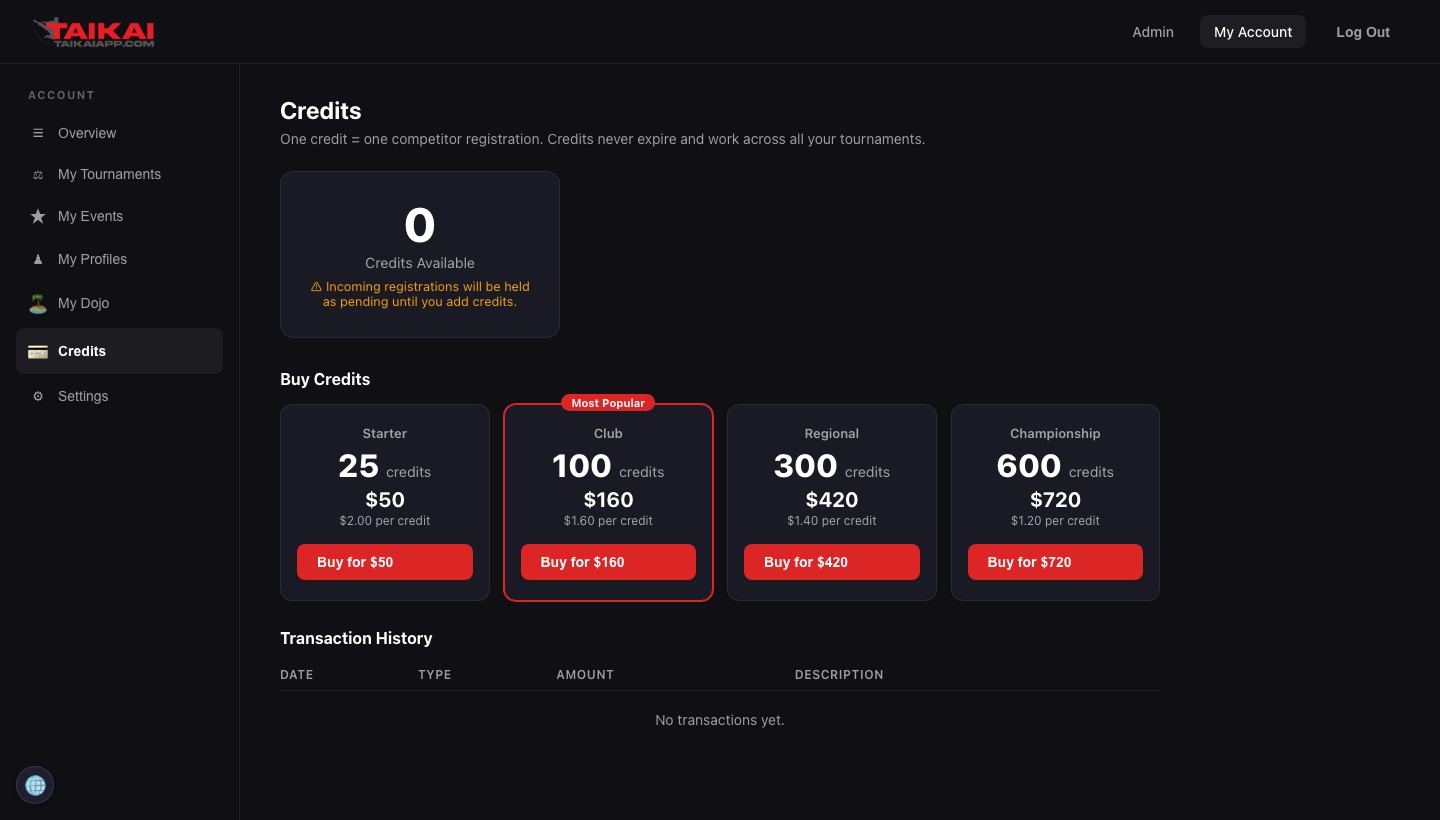
Taikai App uses a credit system instead of monthly fees. One credit = one approved competitor registration. Credits never expire and work across all your tournaments.
Go to Credits in the sidebar to buy a credit pack. During beta, prices are locked in at founder rates.
What's next
With your account created and credits in your balance, you're ready to set up your first tournament. The tournament wizard walks you through everything in five steps — it takes about 10 minutes to complete a full event setup.