Setting Up Your First Tournament
The tournament wizard walks you through five steps: basic details, event types, division rules, pricing, and a final review before you publish. Auto-save runs in the background throughout — if you close the browser, your draft picks up exactly where you left off.
To start, go to your dashboard and click + Create Tournament, or navigate directly to taikaiapp.com/wizard.
Before you begin: Make sure you have credits in your account. Credits are consumed when competitors are approved — not when you create the tournament. You can set up a complete tournament with zero credits; you just won't be able to approve registrations until you purchase some.
Tournament Basics
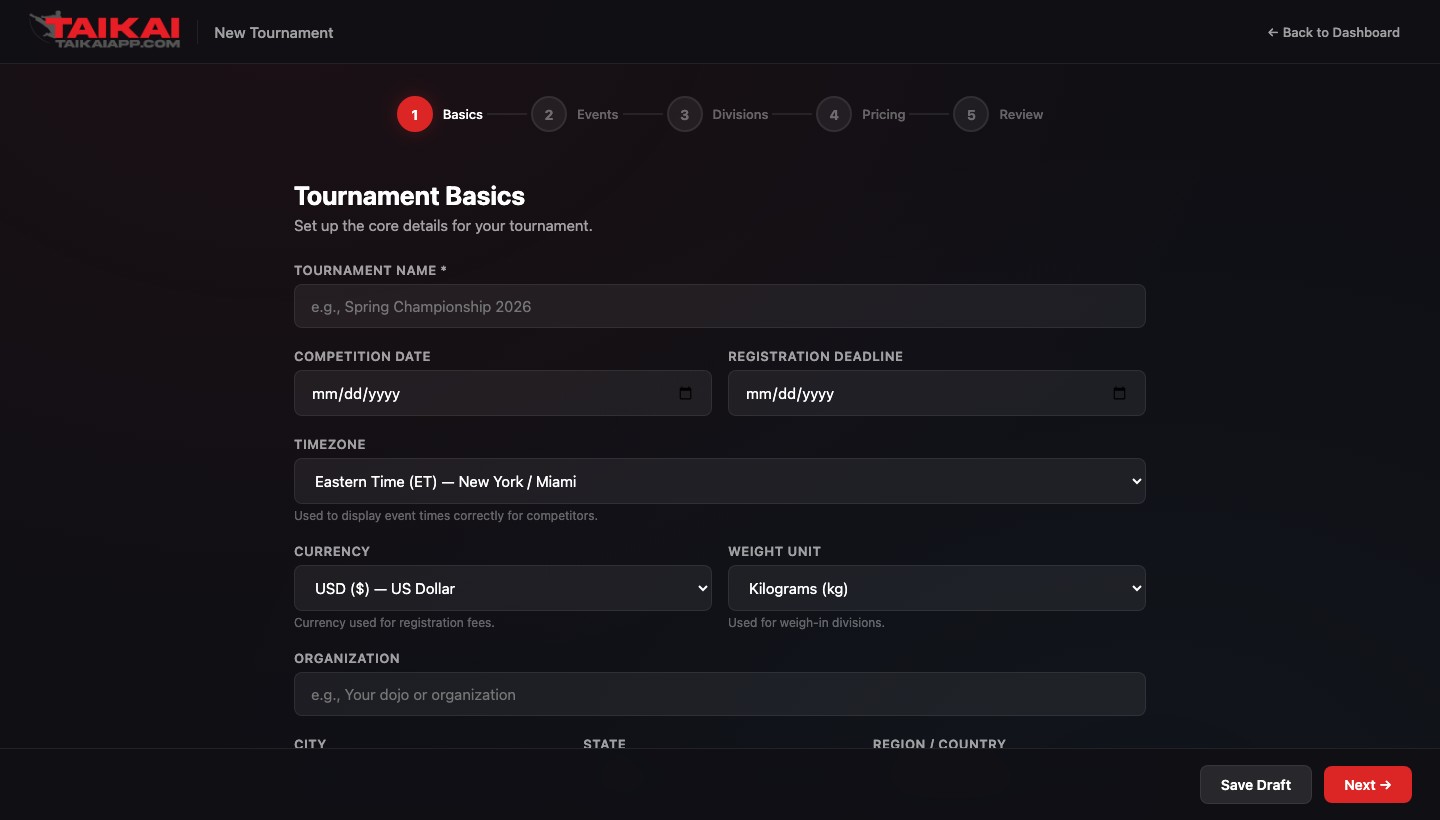
Fill in the essential details that appear on your public registration page and event listings.
| Field | Notes |
|---|---|
| Tournament Name Required | Shown on the public page, all certificates, and the public tournament directory. Keep it formal — this is what competitors see on their awards. |
| Date Required | The competition date. Used to calculate the countdown timer on your public page. |
| Registration Deadline | Online registration closes automatically at midnight on this date. Leave blank to close registration manually. |
| Timezone Required | Controls how all dates and times are displayed. Set this to the venue's local timezone. |
| Currency | Sets the currency symbol shown on registration fees. Does not affect credit pricing. |
| Weight Unit | Choose lbs or kg. Applies to all weight fields on registration forms and check-in screens. |
| Organization Name | Your dojo, club, or federation name. Appears in the footer of competitor certificates. |
Click Next when complete. The wizard validates required fields before advancing.
Event Types
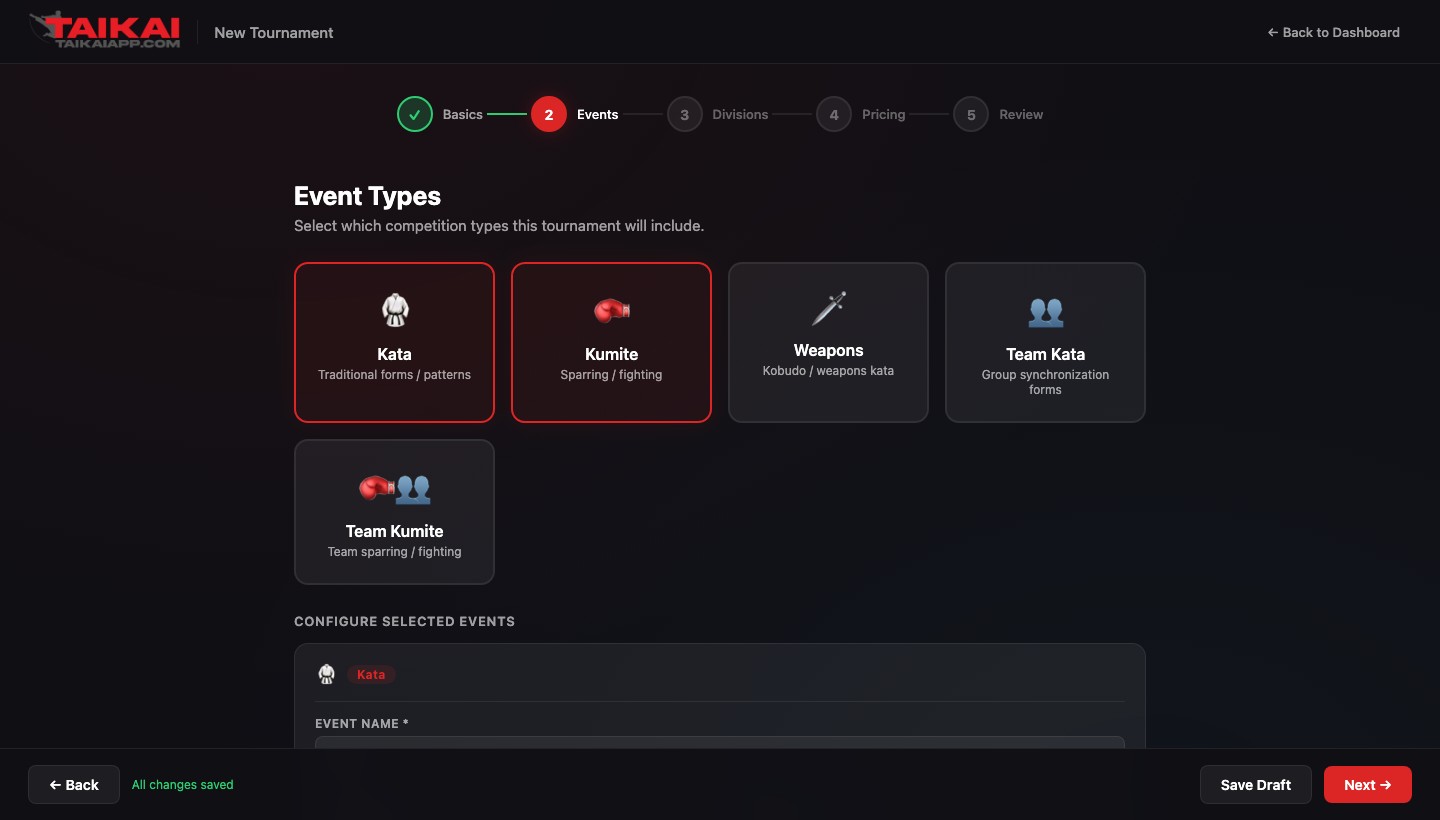
Select which competition types your tournament will include. Each selected type gets its own scoreboard configuration and bracket format.
Available event types:
- Kata — Traditional forms. Supports panel judging with automatic high/low score removal per WKF rules.
- Kumite — Sparring. Supports WKF and AAU scoring formats with fouls, warnings, and overtime.
- Weapons (Kobudo) — Weapons kata. Uses the same panel-scoring interface as Kata.
- Team Kata — Group synchronization forms. Three-competitor teams, same scoring rules as individual kata.
- Team Kumite — Team sparring with individual match records rolled up to a team score.
After selecting event types, the Configure Selected Events panel appears. You can rename each event (e.g., rename "Kata" to "Individual Kata") and optionally mark one as the default event — the one automatically included in the base registration fee.
Tip: You can return to add or remove event types after publishing, as long as no brackets have been generated for the affected events. Once brackets are locked, event configuration is frozen for that event.
Division Rules
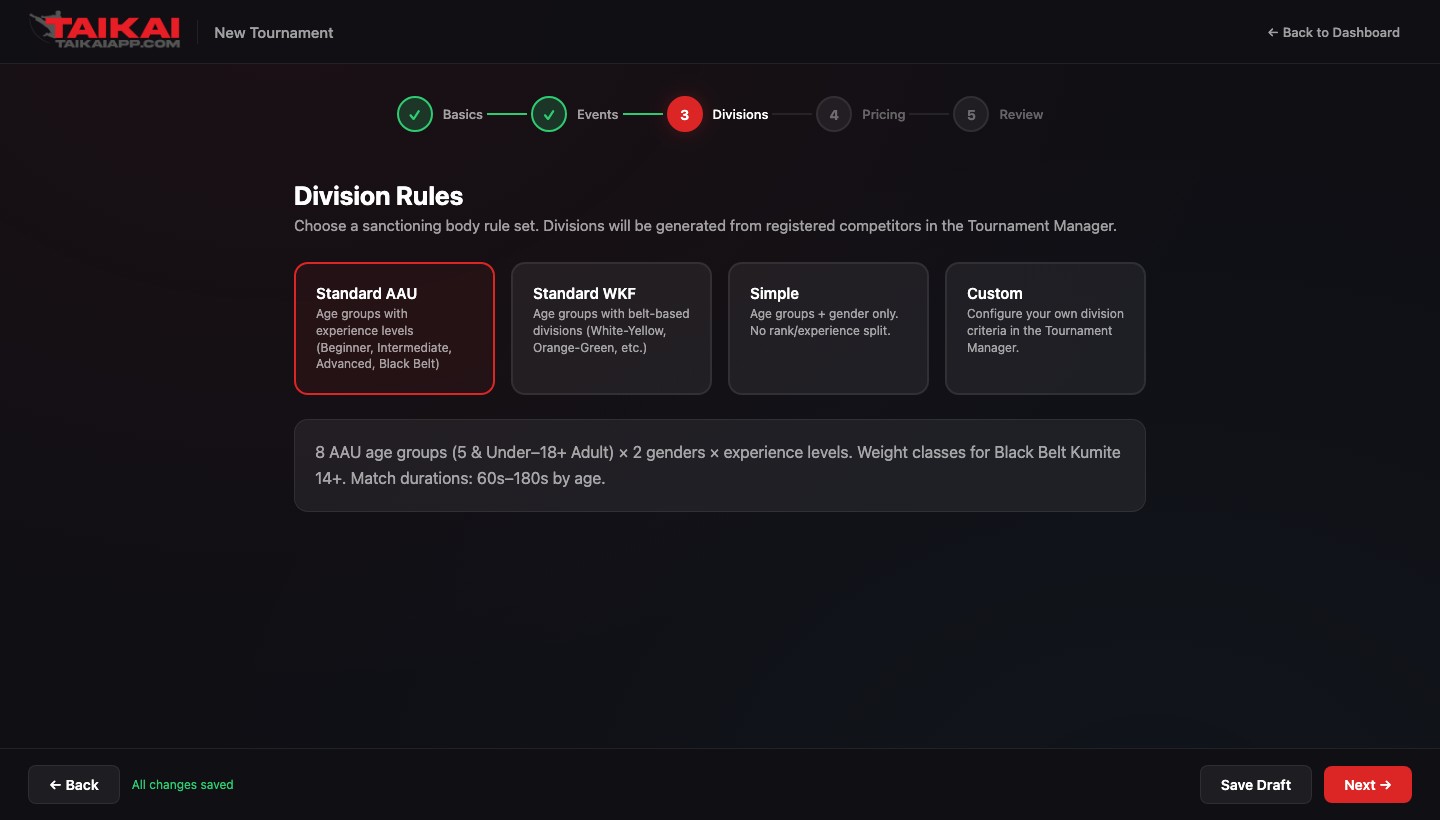
Choose the division structure for your tournament. This determines how competitors are automatically sorted into age groups, belt ranks, and weight classes when they register.
| Template | Best for |
|---|---|
| Standard AAU | AAU-sanctioned events. 8 age groups (5 & Under through 18+ Adult) × 2 genders × experience levels (Beginner, Intermediate, Advanced, Black Belt). Weight classes for Black Belt Kumite 14+. Match durations scale by age. |
| Standard WKF | WKF-style events. Age groups with belt-based divisions using color band groupings (White–Yellow, Orange–Green, etc.) instead of experience labels. |
| Simple | Small intra-dojo tournaments or team competitions. Age groups + gender only. No rank or experience split — everyone competes in the same pool within their age/gender group. |
| Custom | For experienced directors who need a bespoke structure. Select this to configure division logic manually in the Tournament Manager after the wizard completes. |
Note: Division rules are applied when competitors are approved, not at registration. Changing the division template after approvals have been processed will require re-running the auto-assignment engine. This is safe to do but does reset division placements.
Pricing
Set how much competitors pay to register. Taikai App uses a two-price model: a base price for the first event, and an add-on price for each additional event.
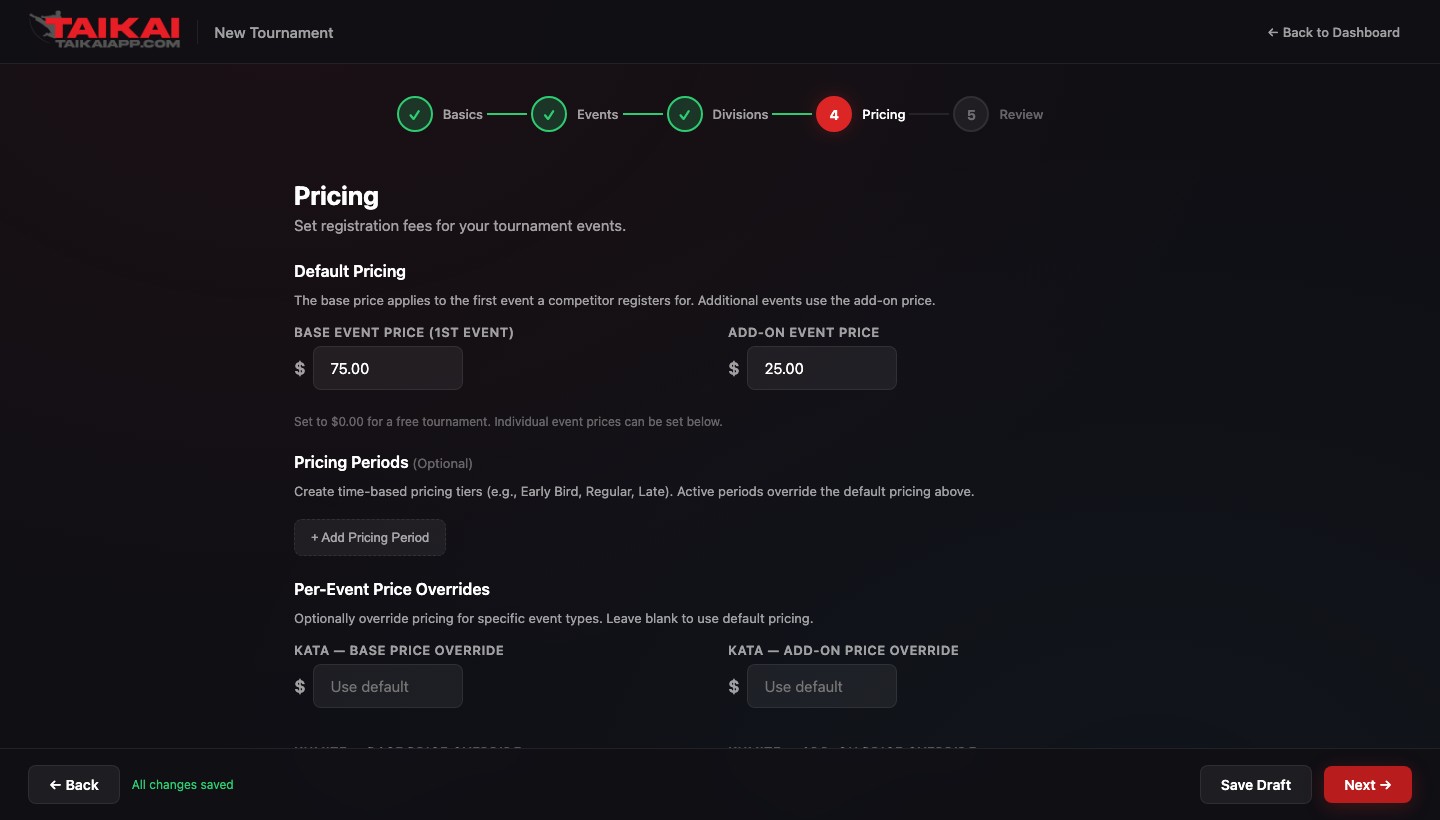
Default Pricing
- Base Event Price — The registration fee for the first event a competitor enters. Set to $0.00 for a free tournament.
- Add-on Event Price — Charged for each event beyond the first. Common to set this lower to encourage multi-event participation.
Pricing Periods (Optional)
Create time-based pricing tiers like Early Bird, Regular, and Late Registration. Active periods override the default pricing automatically — no manual switching required.
Per-Event Price Overrides (Optional)
Override the base or add-on price for specific event types. For example, charge $60 for Kata but $90 for Kumite by entering overrides in the per-event section.
Review & Publish
The review screen shows a summary of everything you've configured. Each section has an Edit link that takes you back to the relevant wizard step without losing other data.
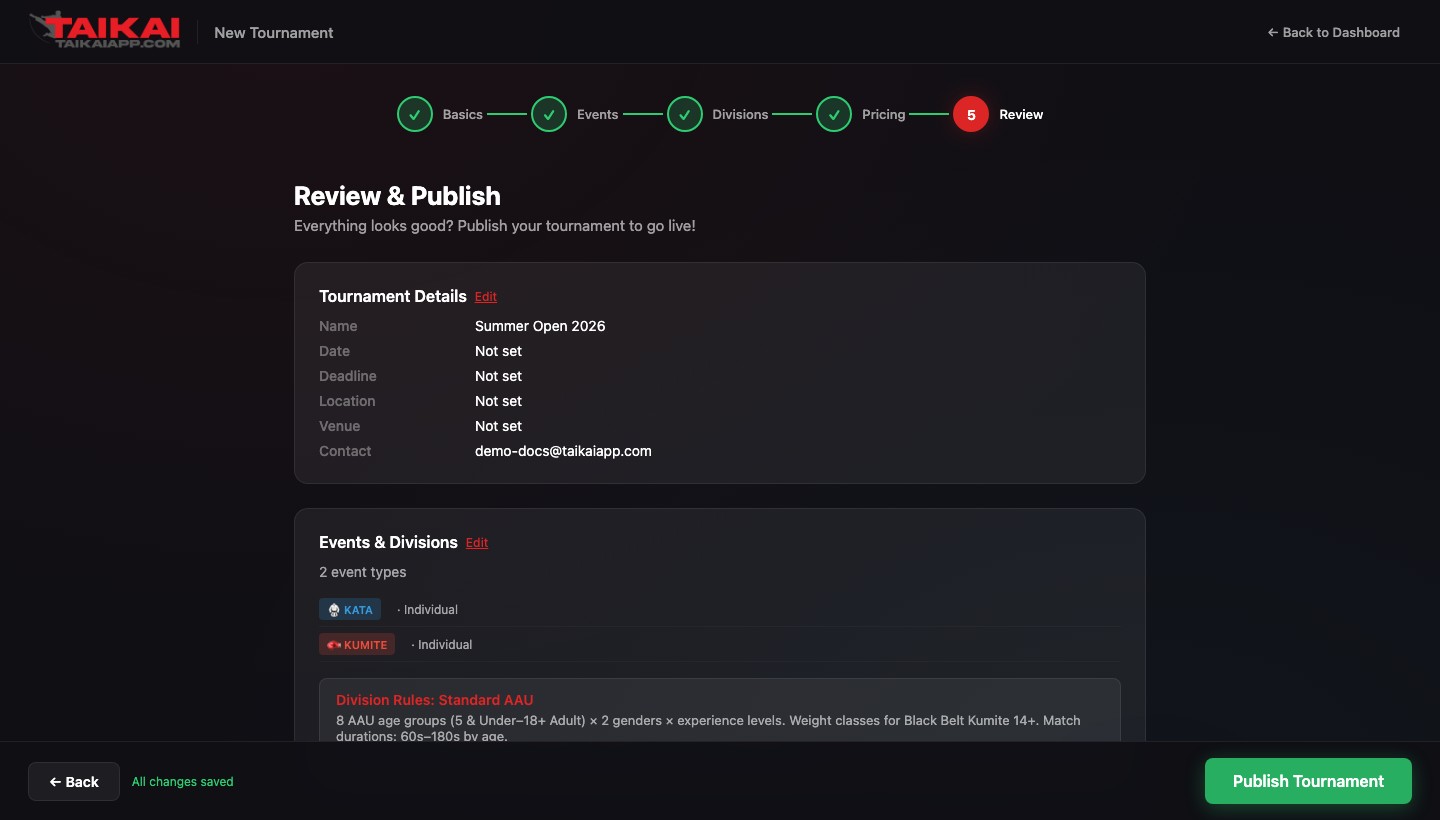
When you're satisfied, click Publish Tournament. This makes your event visible in the public tournament directory and opens registration. You can unpublish at any time from the Tournament Manager settings.
Not ready to go live? Click Save Draft instead of Publish. Draft tournaments are visible only to you in the manager. You can publish at any time later.
After publishing
Once published, you'll be redirected to the Tournament Manager — your day-to-day control panel for the event. From there you can:
- Share the registration link with competitors and coaches
- Review and approve incoming registrations
- Add staff members and assign roles (Check-In, Scoring Operator, etc.)
- Generate brackets when registration closes
- Run live scoring on tournament day